If you previously used email client like Outlook you're probably used to putting messages into folders where a message can only reside in one folder. The primary difference between the labels and folders is that you can apply multiple labels to a single message. This means you don't to remember where you filed a message and you don't have to do folder specific searches.
How to apply a label to an email in Gmail:
- Open Gmail
- Drag the label from the right hand column to the email and drop it
- Or from within the email itself, click the the "Labels" action button at the top, below the search bar and select all the messages you'd like to apply the label to.
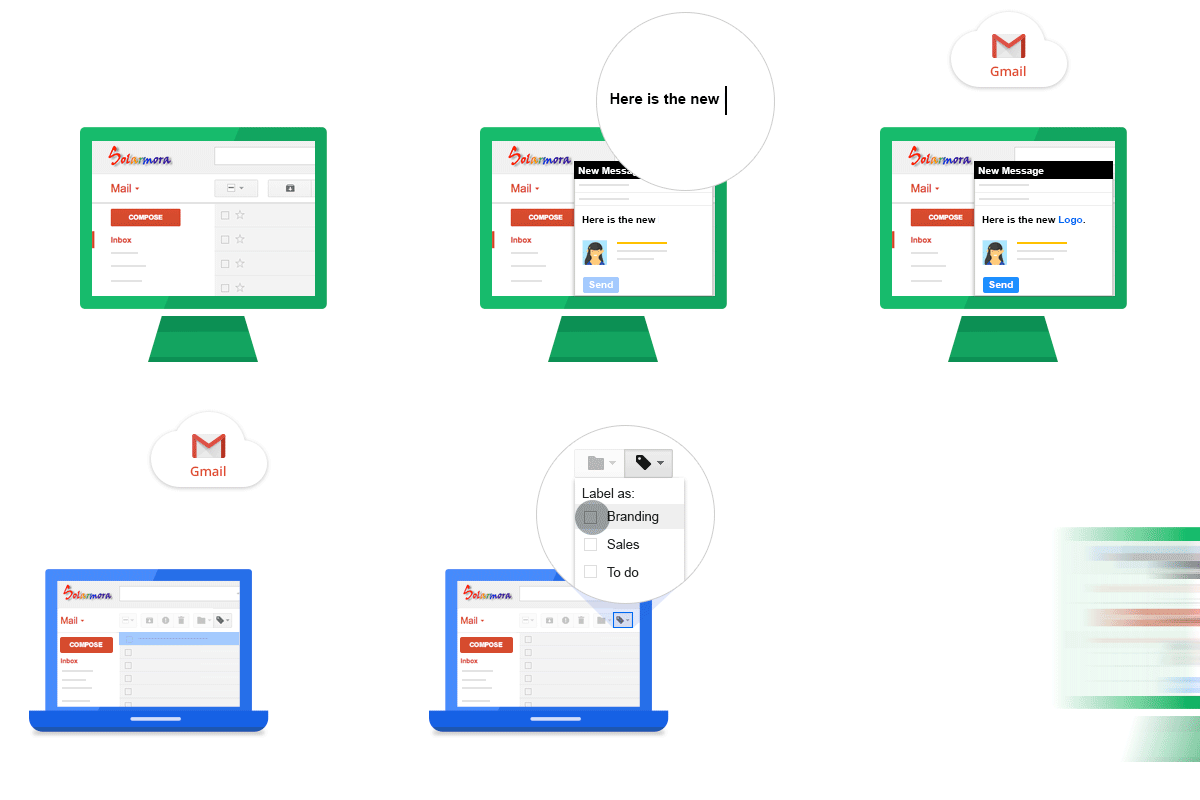
How to apply labels to multiple Gmail messages:
- Open Gmail
- Click on the check box on the left side of all the messages you'd like to apply the label to.
- Click Labels at the top, right below the search bar, and select which labels you'd like to apply.
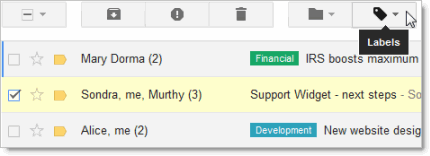
How to view messages under a particular Gmail label:
- Open Gmail
- Click on the label in the list of labels on the left side of the main Gmail screen
- All messages will be displayed in the main Gmail screen
How to create a new label in Gmail:
- Open Gmail
- Click "More" in the list of labels on the left side of the main Gmail screen
- Click "Create new label"
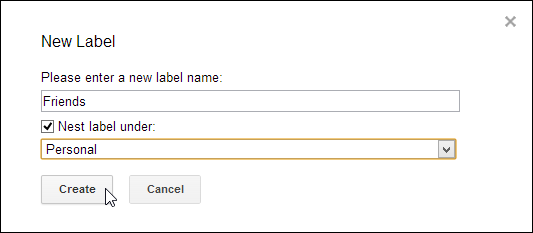
- Enter a name in the "Please enter a new label name" edit box
- Click Create to finish
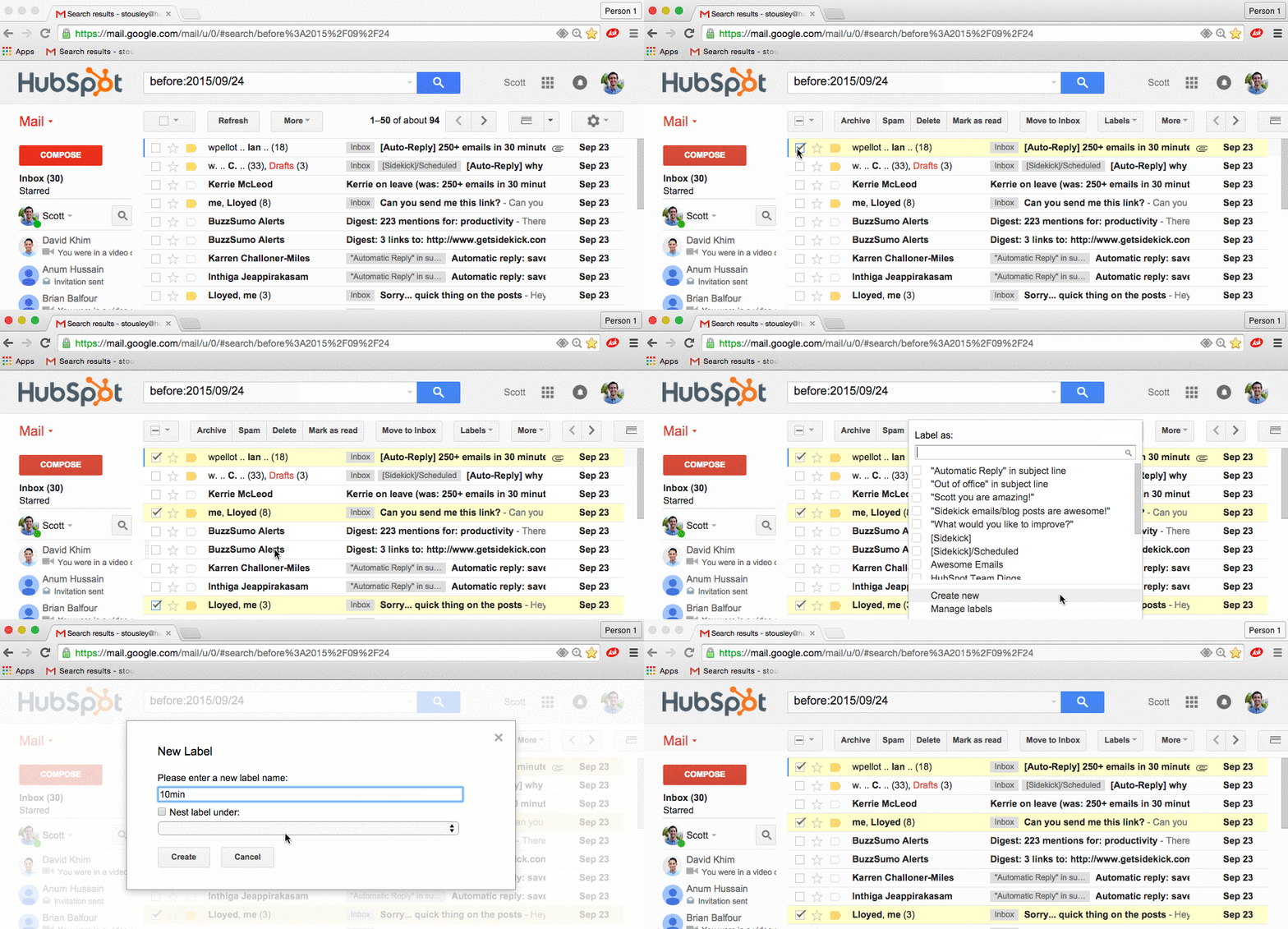
How to nest a Gmail label underneath another label:
- Open Gmail
- Click "More" in the list of labels on the left side of the main Gmail screen
- Click "Create new label"
- Enter a name in the "Please enter a new label name" edit box
- Click the checkbox "Nest label under:"
- Select the label you'd like to nest the new label under
- Click Create to finish
How to remove a label from a Gmail:
- Open Gmail
- Find and select the message using the checkbox to the left of the message, or open the message
- Click the the "Labels" action button at the top, below the search bar
- De-select the label, by clicking on it, in the drop-down menu that you want to remove from the message
- Click "Apply"
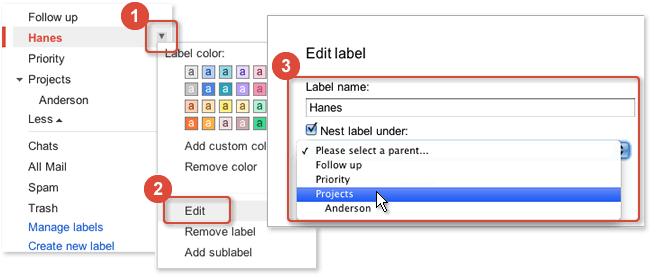
And don't forget to add color to the labels!
How to automatically apply labels to Gmail messages will be covered in the next post.
For a refresher on the basics of Gmail, take a look a previous posts here:
- Compose - Compose and send an email using Gmail.
- Attachments - Add an attachment to an email in Gmail.
- Bonus 1: How To Attach An Email In Gmail
- Bonus 2: How To Add Google Docs As Attachments
- Search - Google's powerful search engine is built right into Gmail.
Free IT Assessment
Not sure where your IT stands? Get a free, no-obligation assessment of your infrastructure, security, and cloud setup.
Get Your Free Assessment →